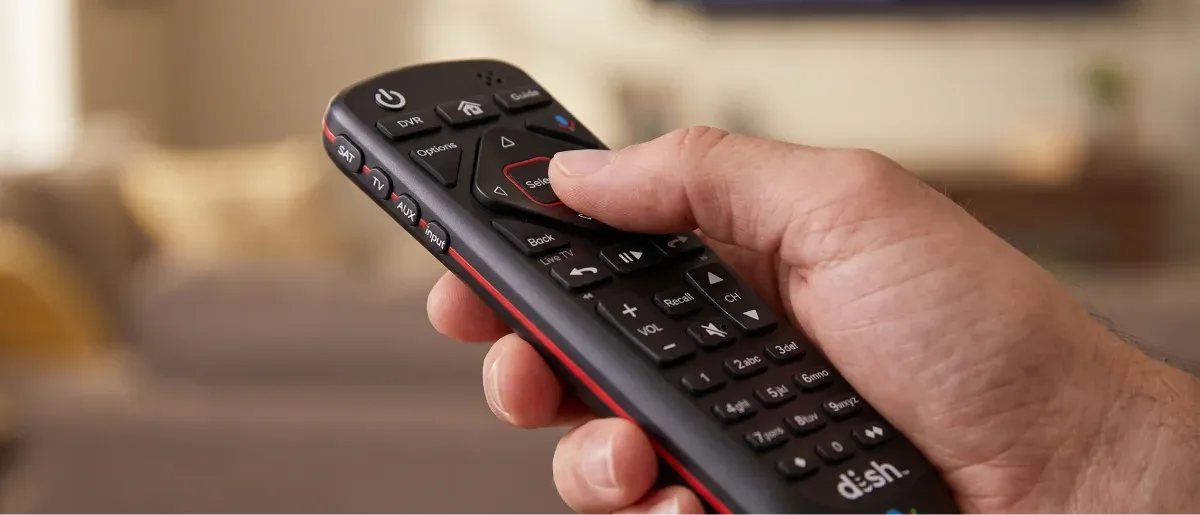
If you're wondering how to reset a DISH remote, here's the key thing to know: DISH remotes don't have a reset button. What most people mean by a remote "reset" is re-pairing the remote to the receiver, which usually takes less than two minutes.
The basic pairing process works across current Hopper, Joey, and Wally remotes. Our team helps DISH customers with equipment setup every day, and this is one of the simplest fixes to do yourself.
Before you start a DISH remote reset, find the model number. Turn the remote over and look on the back; on some models, you'll find it underneath the battery cover. The model number will look something like 40.0, 50.0, 52.0, or 54.0.
The distinction matters because newer Hopper-family remotes pair directly with the receiver, while older ViP remotes use a different programming process. The 40.0, 50.0, 52.0, and 54-series remotes are compatible with Hopper equipment.
DISH remote | Common receiver compatibility | How it communicates |
54.0 | Hopper/Hopper Plus | RF |
52.0 | Hopper/Joey/Wally | RF |
50.0 | Hopper/Joey/Wally | RF |
40.0 | Hopper/Joey/Wally | RF |
21.x and older | ViP 722, 622, 211, 311 and similar receivers | IR/RF, depending on setup |
There are three different things people can mean when they’re looking to reset a DISH remote:
When a customer says the remote suddenly seems dead but power and volume still work, the remote itself is often fine. Usually, you just need to restore its connection to the DISH receiver.
For most current DISH voice remotes, a “DISH remote reset” really means pairing it again. The process is quick, and the confirmation is especially helpful: you'll hear three ascending beeps or tones when the pairing succeeds.
Open the front panel of your Hopper or receiver. You'll expose the receiver's control buttons.
Confirmation: The receiver's front-panel controls should now be visible.
Press SYS INFO on the receiver. On Joey 4 or Wireless Joey 4 equipment, the system-information button is on top of the receiver.
Confirmation: The System Info screen should appear on your TV.
Press SAT on your DISH remote. Press and release it rather than holding it down.
Confirmation: You'll hear three ascending tones/beeps when the remote successfully pairs with the receiver.
Press and hold Cancel/Back to return to live TV. On some receiver setups, the on-screen pairing process may instead ask you to press RECORD after SAT and then select Done.
Confirmation: The System Info screen closes, and the remote can navigate DISH menus and channels.
If you're specifically trying to figure out how to reset DISH remote 54.0, the three-step core process is the same: press SYS INFO on the receiver, press SAT on the 54-series remote, and listen for the three beeps.
Older DISH equipment uses a different approach. If you're working with a ViP receiver and a 21.x remote, the support instructions are SYS INFO → SAT → RECORD → Done rather than the newer three-beep voice-remote sequence.
Press SYSTEM INFO on the front of the ViP receiver. If your receiver doesn't have a SYSTEM INFO button, turn the receiver off and press the front-panel UP button instead.
Confirmation: The System Info screen appears on the TV.
Press SAT on the remote.
Confirmation: The receiver recognizes the remote and the System Info screen remains available.
Press RECORD on the remote.
Confirmation: A remote address/number appears on the System Info screen.
Select Done on the TV screen.
Confirmation: The pairing process completes, and the remote can control the DISH receiver again.
This is the correct approach for older ViP equipment. Don't confuse it with the three-digit device-code process used to program a DISH remote to a TV, DVD player, or other device.
Try DISH remote pairing when:
Sometimes the remote is fine, and the receiver simply needs a restart. A receiver reboot is different from a factory reset: a normal reboot doesn't erase your customized settings.
Locate the receiver's power cord, typically marked with a red tag.
Confirmation: You have identified the correct power cable connected to the DISH receiver.
Unplug the power cord from the electrical outlet for 10 seconds.
Confirmation: The receiver powers down completely.
Plug the power cord back in.
Confirmation: The receiver begins its startup sequence.
Wait for the receiver to finish restarting.
The reset may take up to 5–10 minutes, depending on the troubleshooting flow and receiver.
Confirmation: Your DISH programming and menus return to normal.
If you're wondering, “How long does it take to reset a DISH receiver?”, give it several minutes instead of repeatedly unplugging it. In some cases, you may need to allow up to 10 minutes.
If you're not standing next to the receiver, you can reboot an internet-connected Hopper with Sling or Hopper 3 through DISH Anywhere.
Open DISH Anywhere and sign in.
Confirmation: Your account and receiver information are visible.
Select More, then Settings.
Confirmation: The Settings menu opens.
Select My Receivers, then Receivers.
Confirmation: Your available receivers appear in a list.
Select Reset next to the receiver you want to restart.
Confirmation: DISH Anywhere displays a successful reset message, and the receiver's green status dot turns red while the reset is processing.
You can also visit the DISH Anywhere site and choose Account and Devices → Reboot Receiver.
A DISH receiver factory reset is much more substantial than re-pairing a remote or rebooting the receiver. Use it only when you specifically need to restore the receiver's default settings.
Press HOME twice or MENU once, depending on your remote.
Confirmation: The main DISH menu appears.
Open Settings or Tools, depending on your receiver interface.
Confirmation: You see the receiver-management options.
Select RESET TO FACTORY DEFAULTS.
Confirmation: DISH displays a warning/confirmation screen.
Select RESET RECEIVER TO FACTORY DEFAULTS.
Confirmation: The receiver asks you to confirm the reset.
Select Yes.
Confirmation: The receiver restarts and returns to its default configuration.
Important: A factory reset wipes customized receiver settings such as favorites and other preferences. Don't use it simply because your remote needs to be paired again.
If the DISH remote reset didn't restore control, work through these checks before assuming you need to replace the remote.
If you still need help, the DISH remote troubleshooting page is the next logical step, or you can reach DISH support at 1-800-333-3474. We recommend checking the batteries, resetting the receiver, and pairing the remote before contacting support.
Usually, yes. If your TV's power or volume controls stop responding after you reset or replace the remote, you need to reprogram it. That's separate from pairing the remote to your DISH receiver; you'll need to program your DISH remote to your TV or other device again.
Where is the reset button on a DISH remote?
There's no physical reset button on a DISH remote. Instead, you’ll need to re-pair your DISH remote to your TV. For current Hopper-family remotes, press SYS INFO on the receiver, then SAT on the remote; three beeps confirm successful pairing.
Why does my DISH remote only control power and volume?
If only power and volume work on your DISH remote, it may have lost its connection to the receiver. Press SYS INFO on the receiver, then SAT on the remote. On older ViP systems, press RECORD afterward and select Done on the screen.
Do I need to reprogram my DISH remote after resetting it?
You may need to reprogram the remote to your TV if its power or volume controls stop responding. Pairing the remote with the DISH receiver and programming it for your TV are separate processes. A receiver pairing reset doesn't necessarily erase your TV programming, but a replacement remote may need it configured.
How long does it take to reset a DISH receiver?
A basic DISH receiver reset takes only a few minutes. Unplug the receiver for 10 seconds, reconnect it, and allow up to 5–10 minutes to fully restart. We recommend waiting for the receiver to finish starting up before trying additional troubleshooting steps.
Will a factory reset delete my DVR recordings?
A factory reset restores the receiver's settings to their defaults, so it should not be treated as a routine troubleshooting step. It can remove customized settings such as favorites and preferences. If your concern is simply a remote that stopped responding, re-pair the remote first rather than resetting the receiver to factory defaults.
How do I know which DISH remote model I have?
Turn your DISH remote over and check the label on the back, including underneath the battery cover if necessary. Common Hopper-family models include 40.0, 50.0, 52.0, and 54.0. Older ViP systems commonly use 21.x-series remotes. The model number tells you which pairing procedure to follow.